
October 28, 2024
The Quest for the Perfect Nav Log (Part 2 - Magnetic Course and Leg Distance)
Welcome to Part 2 of the “Quest for the perfect nav log” series, where I share my weird obsession with automating nav log operations. In this episode, we’ll explore how to use the database of GPS and airport fixes published by the FAA to automatically compute true course and leg distance values. We’ll look at one way to obtain magnetic variation, to derive a magnetic course.
The effectiveness of that method will depend on how you plan your flights. Using ForeFlight, I usually plan my routes by drawing the direct line between departure and destination, and “rubber-banding” around airspace, terrain, or any other condition that might require a deviation from a straight route. Among other benefits, this allows to easily put in the route in the aircraft’s GPS.
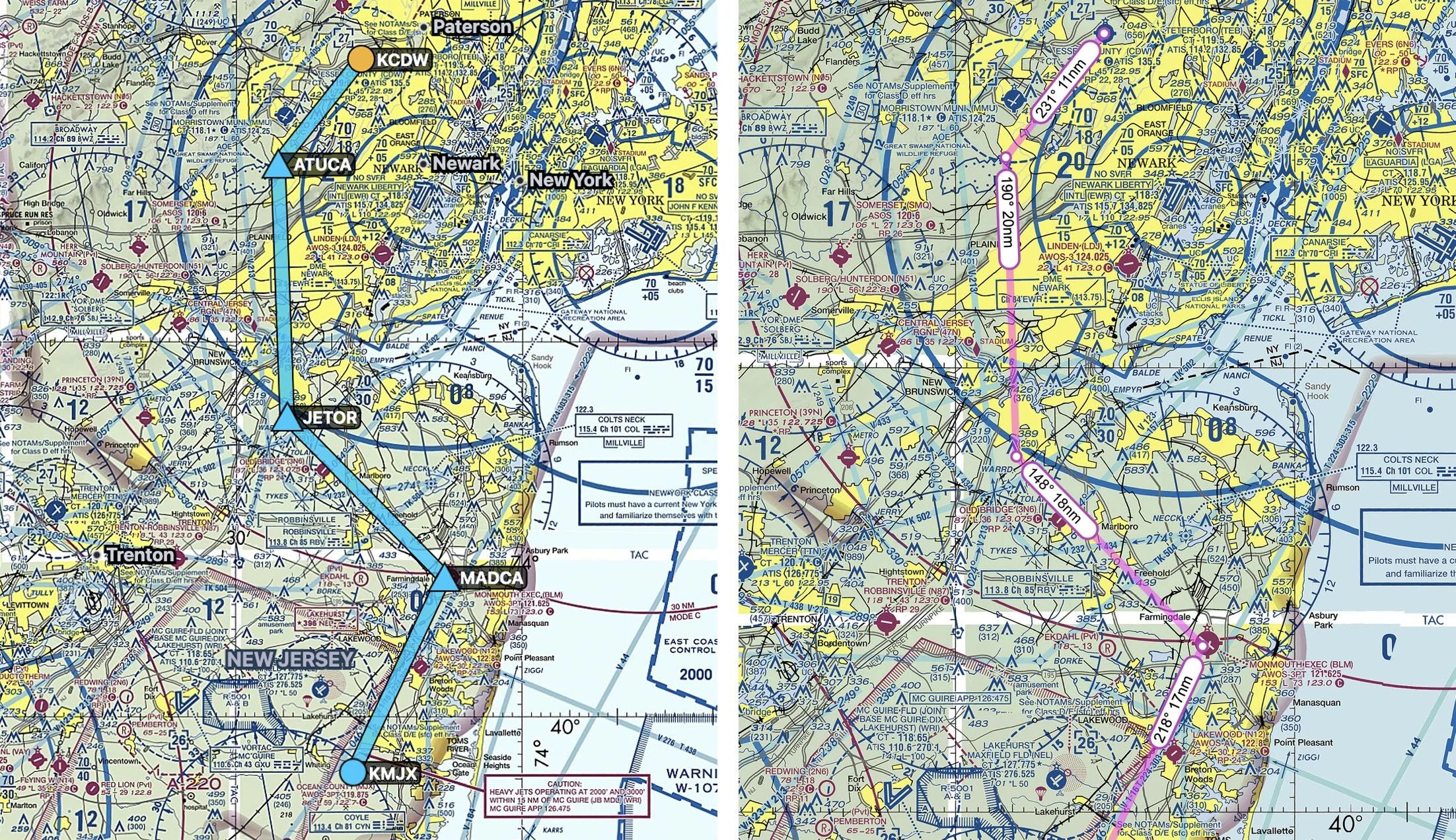
Let’s take the example of a flight from Caldwell (KCDW) to Ocean County (KMJX). Because of the Bravo airspace, and military activity West of Ocean County, The flight requires a few deviations. Here is a route using named GPS fixes, with the route on Skyvector with true courses and leg distances. Our objective in this episode is to find those same numbers using Google Sheets.
The NASR database
The National Airspace System Resource (NASR) of the FAA publishes several databases of aeronautical information. Of special interest for this episode, are the databases for GPS fixes, navaids, and airports. Note that these databases are updated every 28 days, make sure you update your Google Sheets document when a new cycle is published.
The NASR database is accessible at https://www.faa.gov/air_traffic/flight_info/aeronav/aero_data/NASR_Subscription/. Click on the current cycle to access the current database. Scrolling down on that page, you will find a section listing the CSV files available for download.
-
The FIX group of files has information about named GPS fixes in the US. The FIX_BASE.csv file contains, among other things, the GPS coordinates for all fixes, in decimal form. As of writing this post, there are now over 68,000 fixes in the US!
-
The NAV group of files has information about navigation aids (VORs and variations, NDBs, etc.). Similarly, the NAV_BASE.csv file contains the decimal coordinates for all navaids.
-
The APT group of files has information about US airports. Again, the APT_BASE.csv file contains the decimal coordinates for all US airports.
You can explore the contents of those three files in the worksheet for this episode.
Step 1 - Building the database in Google Sheets
The objective of this first step is to have a consolidated and simplified version of the database, listing all GPS fixes, navaids, and airports. This allows you to build your route using a collection of airports (departure, destination, or using them as enroute fixes), VORs (or even NDBs for the more adventurous!), and any GPS fix. There are many ways to do this. I’ll walk you through a simplified version of my workflow.
First, download the three groups of files mentioned above. Import the FIX_BASE.csv, NAV_BASE.csv, and APT_BASE.csv into Google Sheets. I like to use the File > Import function, and then importing the file as a new sheet in the spreadsheet. Note that these files are fairly large (upwards of 10 MB) so expect that it will take some time to import the files into Google Sheets. You can see what that looks like in the example worksheet.
Next, on each of the three databases, I copy the name, decimal latitude, and decimal longitude columns, and paste them in a new sheet. You could search directly in each of the import files, but for simplicity’s sake, I chose to go for a consolidated database with only the essential information. You can see the consolidated database in this tab of the worksheet.
Step 2 - Retrieve GPS coordinates
The next step is to search for our fix names in our consolidated database. This is made very easy with the XLOOKUP function. You can read more about the function here if you are unfamiliar with it.
With the following assignments:
- Fix name in the A column in the database,
- Fix latitude in the B column in the database,
- Fix longitude in the C column in the database,
- The fix we are searching for in A3,
The following formula yields the latitude for the fix:
=XLOOKUP($A3,Database!$A:$A,Database!$B:$B,0,0)Dragging the formula downwards and repeating the same operation for the longitude, yields the GPS coordinates of all fixes in our flight plan.
Step 3 - Compute true course and leg distance
Now to the fun stuff! Again, with Google Sheets set of trigonometric functions, you can derive true courses and leg distances from these GPS coordinates. Credit goes to the MovableType website for the formulas.
With the following assignments:
- Origin fix latitude in B3
- Destination fix latitude in B4
- Origin fix longitude in C3
- Destination fix longitude in C4
First, let’s look at the true course. The following formula yields the true course, in degrees. Note that the true course will change over long distances. This formula yields the true course at the starting point. For the small leg distances that we use in GA, this impact is negligible.
=MOD(DEGREES(ATAN2(COS(RADIANS(B3))*SIN(RADIANS(B4))-SIN(RADIANS(B3))*COS(RADIANS(B4))*COS(RADIANS(C4-C3)),SIN(RADIANS(C4-C3))*COS(RADIANS(B4)))),360)Next, up, the following formula yields the leg distance between our two fixes, in nautical miles:
= 6880.1 * ASIN(SQRT(0.5 - COS((B4 - B3) * 0.0174532925199432 )/2 + COS(B3 * 0.0174532925199432) * COS(B4 * 0.0174532925199432) * (1 - COS((C4 - C3) * 0.0174532925199432))/2))Step 4 - Compute magnetic variation and obtaining a magnetic course
Last but not least, let’s talk magnetic variation. Magnetic variation is obviously location dependent, and also changes over time, which makes it a tricky one to obtain. The University of Colorado at Boulder publishes a handy script to obtain magnetic variation, using the 2015 World Magnetic Model. The model works well, but I’ve experience some performance issues using it. You can either use the script while putting together a navigation log each time, or compute the magnetic variation for all fixes in your database. For my production app, I went with the latter option as I had trouble getting the script to work in a predictable enough way, so much so that my automation would fail because of that step. We will keep it simple here, and just use the script in the values of our flight plan.
Information on how to use the script is available here. To use the script in your own document, you need to open Google Apps Script, copy the contents of the Code.gs file. Then, create a new script in your file, and just paste the contents in the editor. Save the file, and you can now use the =getWMM formula in your spreadsheet.
With the following cell assignment:
- Fix latitude in B3
- Fix longitude in C3
The formula below yields the magnetic variation for the fix, in degrees. The first field in the formula is the MSL altitude and is set to 0 as it is not a factor for tens of thousands of feet. The second and third are the latitude and longitude. The fourth is the version of the model, set to the 2020 numbers. The minus sign is required because the model outputs the value of the variation opposite to the way it is used in aviation. Similarly, magnetic variation could vary significantly between departure and destination, but again, for the small distances covered in GA, the impact is negligible. Try to keep your leg distances below 50 NM.
=-getWMM(0,B3,C3,2020,5)You can see it in action in the example worksheet.
With that number in our hands, we can now add it to our true course, modulate it to 360°, and we now have a magnetic course. Using all the E6B computations discussed in the previous post, we are now able to complete a fairly comprehensive nav log based on a flight plan and some performance numbers.
What’s next?
In the next post, we’ll discuss handling performance to further increase the level of automation. Stay tuned!